Home / App Guide / Getting around / Dashboard presets
How to customise your PantauSivik dashboard: presets and My Setup
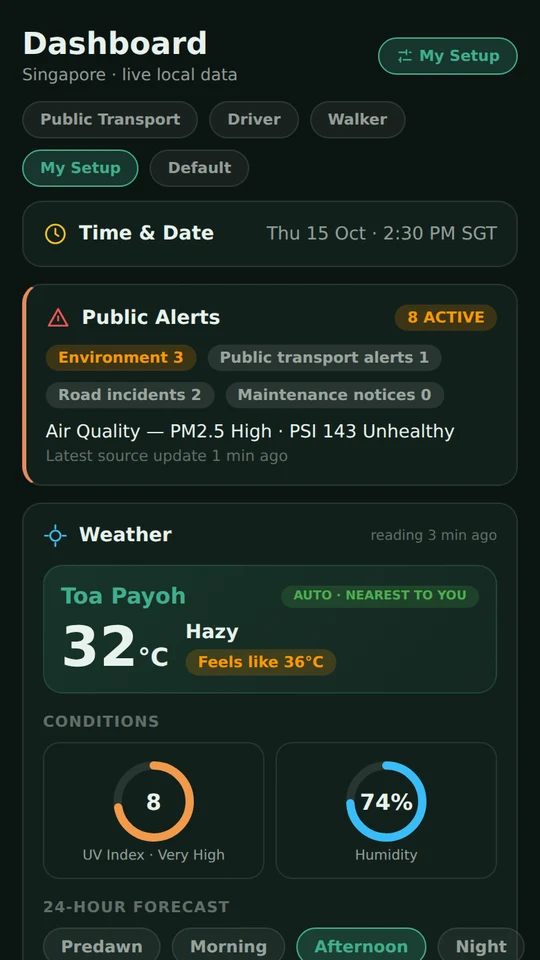
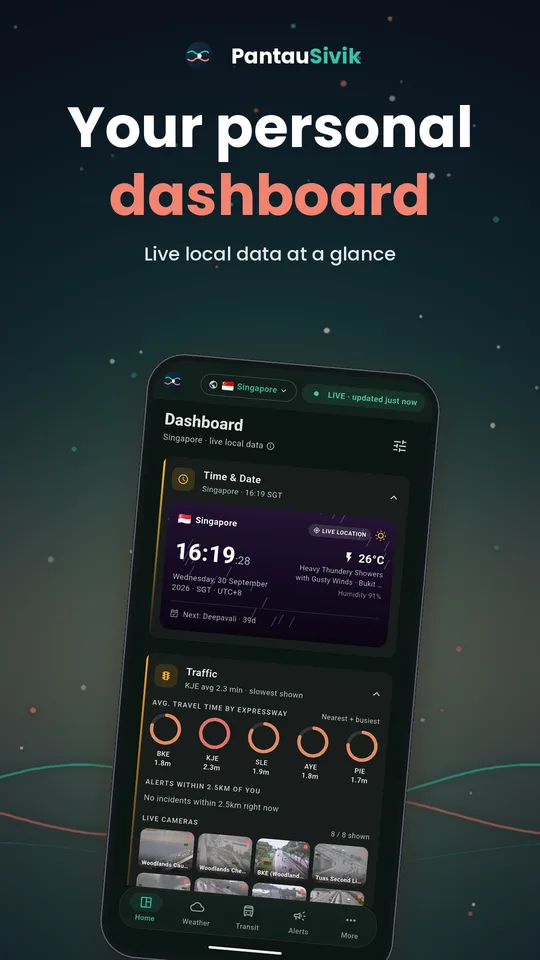
Short answer: pick a preset when you first open the app, or change it later under More, then Settings, then Dashboard. Then drag cards into your own order, hide the ones you do not need and save the result as My Setup. This guide covers the Singapore dashboard.
The four presets
After you choose your Home country, and your sectors for Singapore, the app asks How do you get around? Each answer arranges the dashboard cards to match:
- Public Transport: bus and MRT or LRT cards lead.
- Driver: traffic, parking and fuel price lead.
- Walker: weather, alerts and community lead.
- The default order: for when you are not sure yet. Every card shows in the standard order.
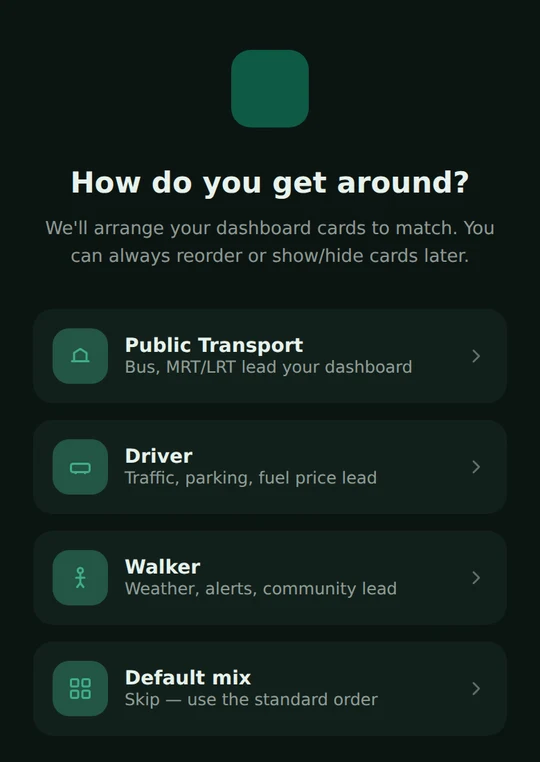
A preset changes the order of the cards and which ones are shown. It does not change your alerts. It also changes the third button on the bottom bar: Transit for Public Transport and Walker, Traffic for Driver and Trip Planner for the default order. Home, Weather, Alerts and More always stay in place.
Change your preset later
- Open More, then Settings, then Dashboard.
- Tap the Dashboard preset row.
- Pick a preset and confirm.
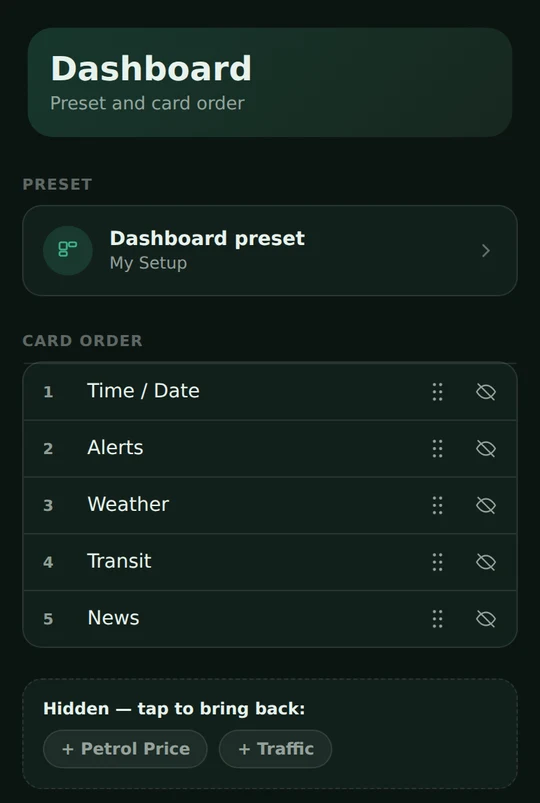
The same page lists Card order, a numbered list of your cards with a drag handle and a hide button on each. Choosing the default order again always puts every card back in the standard order, so use it as a reset.
Reorder and hide cards
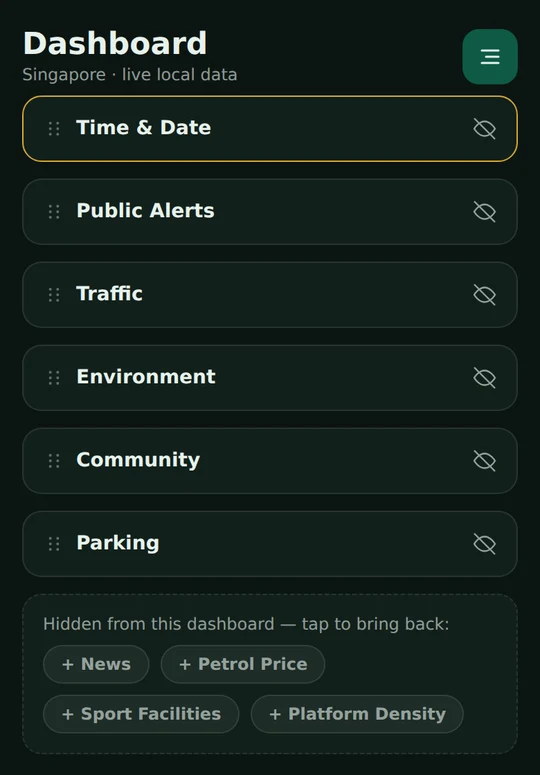
You can also change the dashboard itself. In Customize mode, each card gets a drag handle and an eye-off button:
- Drag a card by its handle to move it. Put the three you check most at the top.
- Tap the eye-off button to hide a card, for example Petrol Price if you do not drive.
- Hidden cards wait in a Hidden, tap to bring back list. Tap one to restore it.
Save your layout as My Setup
My Setup is a fifth preset that holds your own layout. It behaves like this:
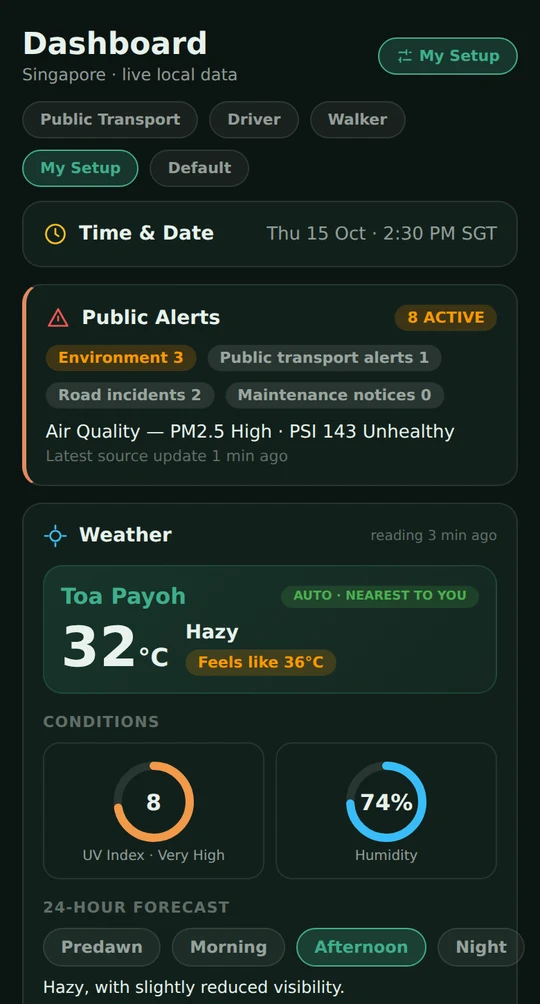
- The first time you customise with nothing saved, your changes are saved as My Setup and it becomes the active preset.
- Once My Setup is active, later edits update it.
- If Public Transport, Driver, Walker or the default order is active when you edit, the Dashboard preset row reads Custom and your saved My Setup stays as it was. A Save this layout as My Setup row appears if you want to keep the new layout.
- Choosing one of the fixed presets never changes your saved My Setup. Pick My Setup again to return to it.
Tips
- Start from the preset closest to how you travel, then customise it.
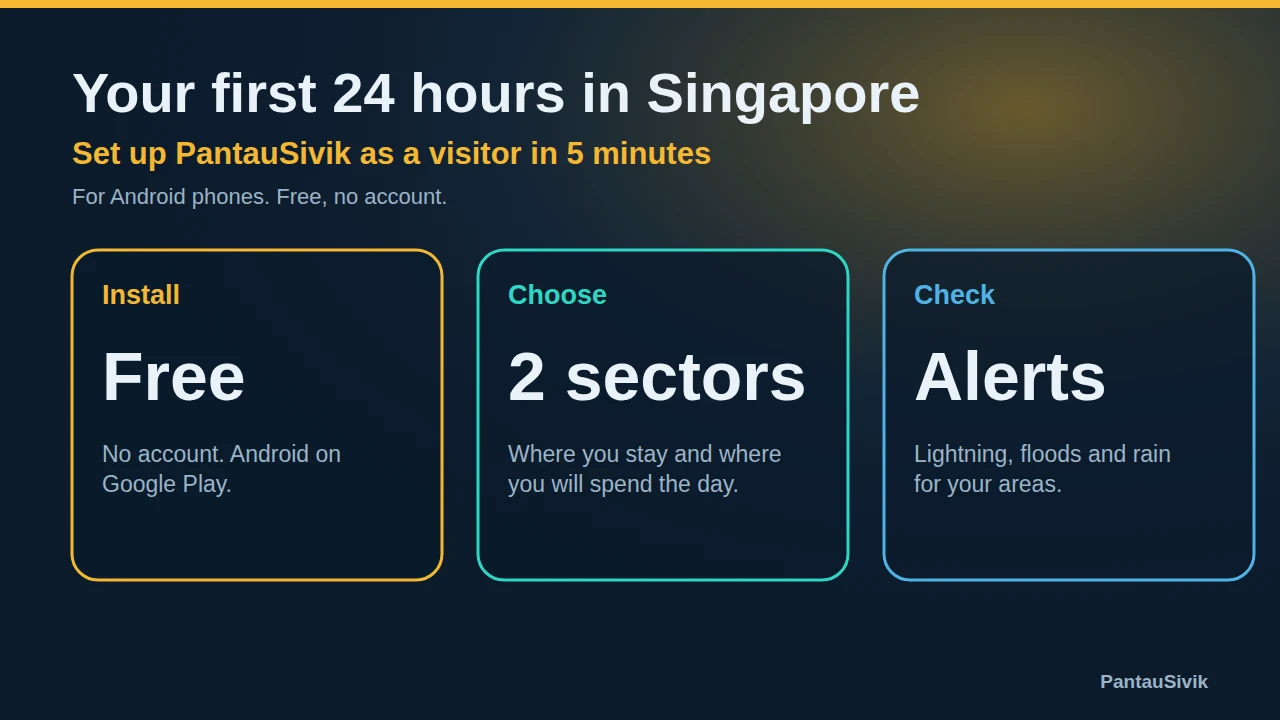
- Visitors to Singapore usually do well with Public Transport or Walker. See your first 24 hours in Singapore.
- If the dashboard looks wrong after trying a few presets, choose the default order and start again.
Good to know
Your preset and layout are stored on your phone. Screens and wording can change a little between app versions.
Information comes from public sources and is there to help you plan. PantauSivik is independent and not affiliated with any government agency.
Frequently asked questions
Does My Setup follow me to another phone?
No. Your preset and layout are stored on your phone, and the app needs no account.
Does a preset change my alerts?
No. Presets change the order and visibility of dashboard cards. Alerts are set under More, then Settings, then Notifications.
Can I use presets on the Malaysia dashboard?
The preset picker is for the Singapore dashboard. The Malaysia dashboard has its own card order.
How do I get a hidden card back?
In Customize mode, tap the card under Hidden, tap to bring back. You can also bring it back from Settings, then Dashboard.
See also: Map guide, Trip Planner guide, Bus arrivals guide, Public Alerts guide, Weather, PSI and UV guide, Set up alerts for home and work, Your first 24 hours in Singapore.
Spotted a mistake? Report an error on this page.