Home / Blog / Visitors and Planning
Your first 24 hours in Singapore: set up PantauSivik as a visitor
Landing in a new city, you want to know three things: how do I get around, will it rain, and is anything going wrong nearby? PantauSivik is built for people who live in Singapore, but a lot of it helps visitors too. This is a short setup you can do before you fly or on the hotel Wi-Fi, so the app works for you from day one.
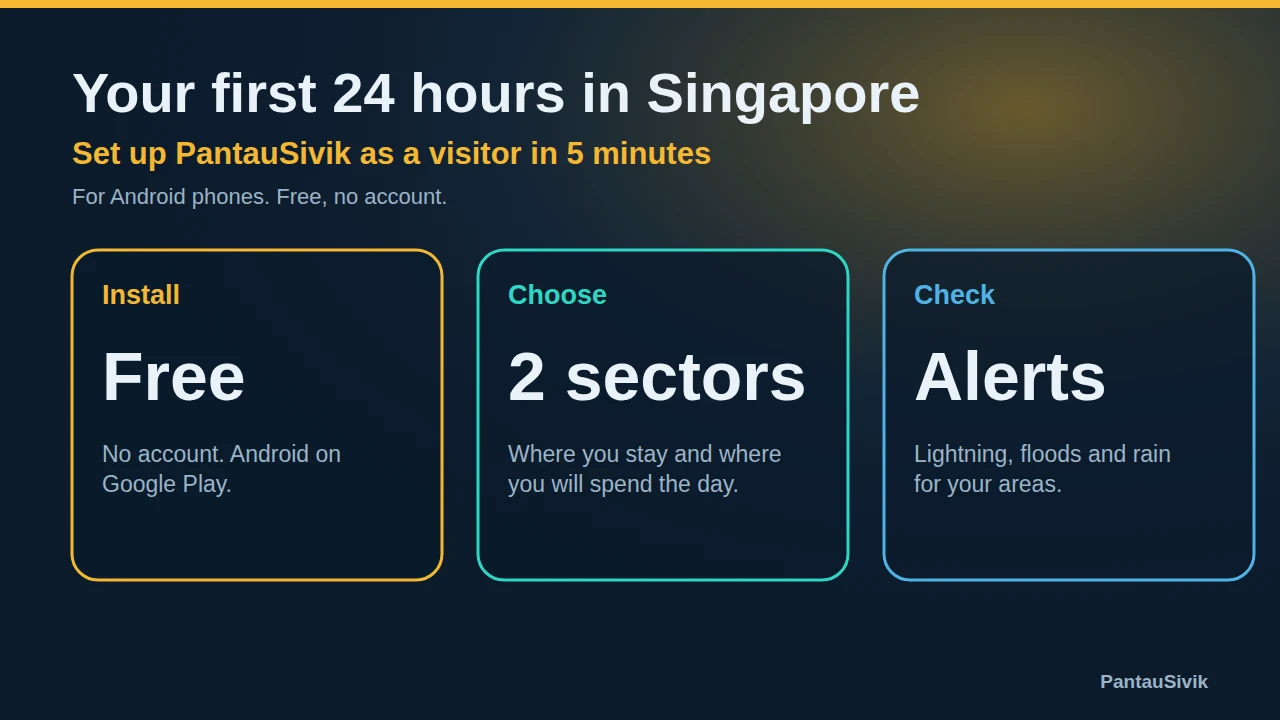
In short: install PantauSivik from Google Play, choose Singapore as your Home country, pick the sector where you stay and one or two where you will spend your days, then set Lightning and Flood alerts to My sectors.
Before you start
- PantauSivik is Android only for now, and the app is in English.
- It is free and needs no account. Your sector choices stay on your phone.
- There is no separate visitor mode yet, so the setup below uses the same screens as everyone else.
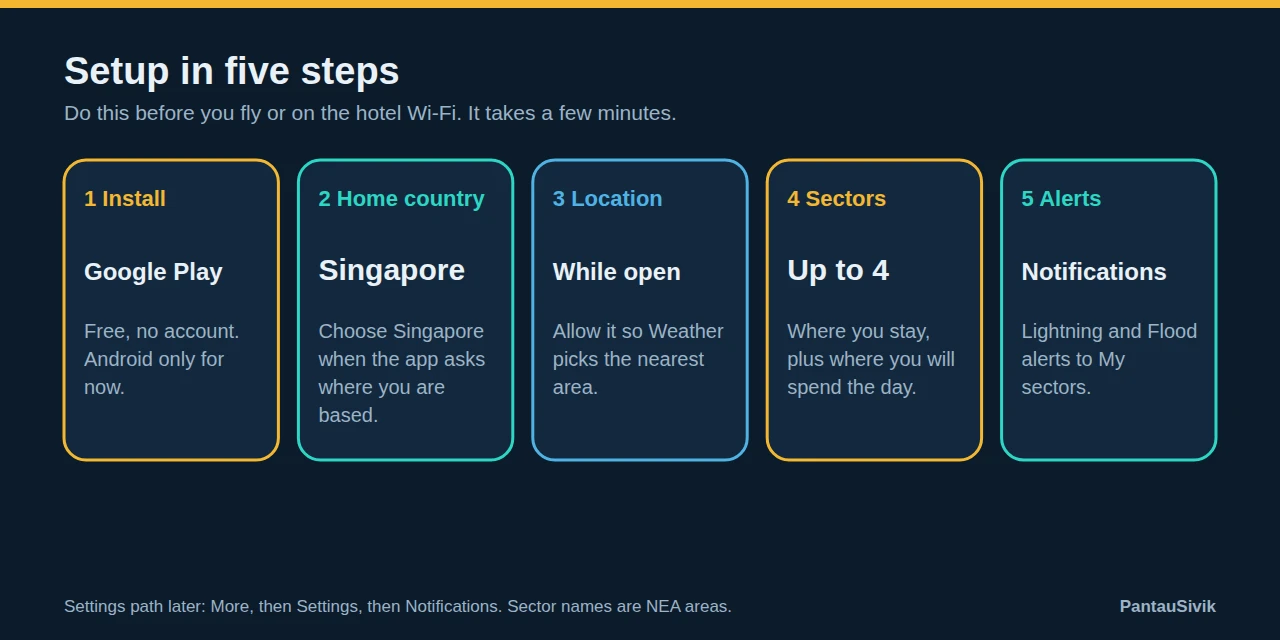
Step 1: Install
Open Google Play, search for PantauSivik and install it. Do this on Wi-Fi before you fly if you can, and update the app if it is already installed.
Step 2: Answer the first screens
The first launch walks you through a few screens. Allow location when asked, so the Weather page can pick the area nearest to you. The app reads your location only while it is open. When it asks where you are based, choose Singapore. The app also asks you to pick a dashboard style, and Public Transport or Walker suits most visitors.
Step 3: Choose your sectors
Next comes Where do you want alerts for? You can pick up to 4 of the 47 NEA sectors, and there is no Skip button, because alerts now depend on your sectors. A visitor needs only two or three:
- The sector where you stay.
- The sector where you will spend most of your days, such as the city centre, Sentosa or the airport area.
- Optionally, a sector for a trip you have planned, such as a day at the beach or a nature park.
Sector names are NEA areas, such as City, Sentosa, Changi, Kallang or Novena. If you are not sure which one a place is in, search for the neighbourhood name and pick the closest. You can change them later under Settings, then Notifications, then My sectors.
Step 4: Switch on the alerts that matter
Open More, then Settings, then Notifications. For a visitor, this is a sensible starting point:
- Lightning: My sectors, so storm alerts name the area where you are.
- Flood alerts: My sectors.
- Heavy rain warning: Islandwide.
- Public Transport: Islandwide, and in the Include row tick the train lines and buses you plan to use.
Check that PantauSivik is allowed to send notifications in your phone settings too. Our full alerts how to explains every setting.
Step 5: Use it once a day
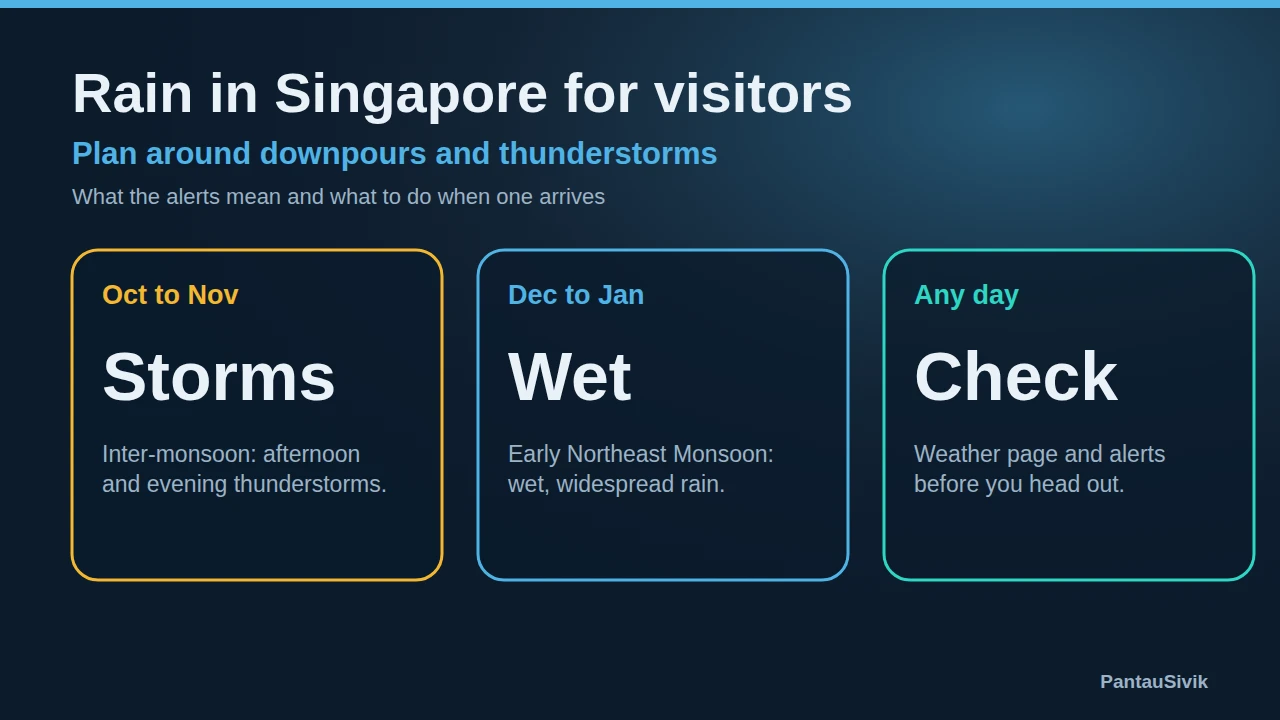
- Morning: open Weather and look at the 24 hour outlook for the part of the day you will be outside. See rain in Singapore for visitors.
- Before a journey: open the Trip Planner to compare routes and fares, and check MRT platform crowds and bus arrival times.
- When a storm builds: open Alerts and look at the lightning card.
A sample first 24 hours
- Landing. Connect to airport Wi-Fi, open the app and check the Weather page for the area around your hotel.
- Getting to the hotel. Use the Trip Planner to compare the train, bus and taxi options and their fares. Check the platform crowd level before you leave.
- Evening. Open Alerts and make sure the lightning and flood cards show your sectors. Decide tomorrow's outdoor plan from the 24 hour outlook.
- Next morning. Look at Weather again. If rain or storms are likely in the afternoon, put outdoor sights first and indoor ones later.
Two habits that save the most hassle
First, check the lightning card before you commit to an outdoor plan at a beach, a park or a rooftop. Second, look at the live MRT crowds and bus arrivals before you leave, so you avoid a long wait in the heat or the rain. Both take under a minute.
Crossing into Malaysia for a day?
Alerts follow your Home country. If you open the app in Malaysia, it offers to switch your alerts for the trip and to switch back when you return. See our Malaysia guide.
Common questions
Is PantauSivik on iPhone?
Not yet. It is on Google Play for Android only for now.
Do I need an account?
No. The app is free, needs no account, and your sector choices stay on your phone.
Is the app in my language?
The app is in English only for now.
What should I pick as my Home country?
The app does not have a separate visitor option yet. Choose Singapore when it asks where you are based, so that your alerts are for Singapore.
Do I need mobile data?
Yes. The app needs an internet connection for live information, so use hotel Wi-Fi or a local data plan.
Sources: PantauSivik app, version 1.31.0 and later. Sector names are NEA areas. Screens and wording can change between versions.
Information in PantauSivik comes from public sources and is there to help you plan. In an emergency, follow official channels. PantauSivik is independent and not affiliated with any government agency.
See also: Rain in Singapore for visitors, How to set up alerts for home and work, Trip Planner guide, MRT platform crowds guide, Weather, PSI and UV guide, Malaysia guide, Changi Airport to the city, Customise your dashboard, Map guide.